
A header bidding auction can fail in a dozen different ways and still leave a clean browser console. The slot renders, the ad server fills it with a house campaign, and revenue quietly erodes for days before anyone notices. Debugging Prebid means working backwards from a symptom, an empty slot, a low CPM, a slow page, to a specific mechanism: a bidder that never bids, a bid that arrives after the timeout, or a bid that wins but never matches a line item in the ad server. This guide is a runbook. Work through it in order and you will isolate almost any header bidding failure with the tools already in your browser.
What a broken auction actually looks like
Every Prebid failure falls into one of four buckets, and naming the bucket first saves hours.
The first bucket is no demand: bidders receive the request and return nothing. The console shows zero responses for a bidder, or bids exist but sit far below your floors. The second bucket is lost in transit: the bid wins the auction but the ad server never receives it, usually because a targeting key or price bucket does not match a live line item. The third bucket is timing: the bid arrives, but it arrives after the auction closed, so the ad server falls back to a lower-value campaign. The fourth bucket is rendering: GAM selects the creative, the hb_adid targeting key points to the cached bid, and the creative still fails to display because the ad unit code in the page does not match the slot definition.
Write down the symptom before you touch anything. "CPM dropped 30% on mobile web in DE since Tuesday" points at demand and floors. "Interstitials show blank after the redesign" points at rendering. "Time to first ad doubled" points at latency. Each symptom maps to a different section of this runbook, and jumping straight to a fix without the diagnosis is how teams spend a full day patching the wrong layer.
Prepare a safe debugging environment before you break anything
Debugging on live traffic risks real revenue, so set up an isolated environment first.
Clone the page or use a staging environment that loads the same Prebid.js build and the same adapter configuration as production. Pin the exact Prebid.js version you run, because adapter behavior and default timeouts change between releases, and a bug report against the wrong version wastes everyone's time. Keep a test ad unit configured in your ad server with an unrestricted house campaign as a fallback, so a failed auction renders something visible instead of a blank div.
Next, confirm your consent setup. If the page runs a TCF-compatible consent management platform, a missing or malformed consent string suppresses bids from many demand partners, and that suppression looks identical to a bidder outage. Check the Global Privacy Control signal as well, since some bidders treat a GPC opt-out as a reason not to bid at all. Finally, verify your Prebid config loads in a deterministic order: the consent platform before Prebid.js, Prebid.js before the ad server library, and setConfig calls before requestBids. Race conditions in this sequence produce intermittent failures that are the hardest category to reproduce. If you run your setup through our Prebid management service, we maintain this staging parity for you, but the same discipline applies to any self-managed build.
Inspect live auctions from the browser console
Prebid.js ships with its own inspection tooling, and the fastest diagnostic path starts with the console.
Turn on debug mode with pbjs.setConfig({ debug: true }) in the console, or reload the page with the pbjs_debug=true query parameter appended to the URL. Debug mode logs every auction in detail: each bidder's request, each raw response, the bid's CPM and currency, the resulting price bucket, and the final ad server targeting. Read these logs top to bottom and you will see exactly where the chain breaks. The official Prebid debugging overview covers this workflow and also documents the Professor Prebid browser extension, which gives you a visual panel for auction inspection without touching the console at all.
Once debug mode runs, interrogate the runtime objects directly. pbjs.adUnits shows every ad unit Prebid knows about, its media types, its sizes, and its bidders. Compare that list against the slots actually defined on the page: an ad unit that never enters the page is a configuration bug, not a demand problem. pbjs.getBidResponses() returns the winning bids from the most recent auction, and pbjs.getNoBids() returns the bidders that explicitly declined. A bidder in getNoBids saw the request and chose not to compete, which points at floors, geo, consent, or inventory quality. A bidder absent from both objects never received the request, which points at the adapter config or a JavaScript error during initialization.
Two checks close out the console pass. Run pbjs.getConfig() and read the timeout, the price granularity, and the targeting key prefix, because a mismatch between the key prefix Prebid writes and the keys your ad server expects will silently kill delivery. Then inspect the winning bid's adUnitCode and confirm it matches the div id the ad server targets. These two mismatches account for a large share of "bids exist but nothing renders" tickets.
Mock bids with the Prebid debugging module
When you need to test how the page behaves with a specific bid, do not wait for a real one.
The Prebid debugging module intercepts the auction and swaps in mock bids that you define, without touching real adapters or sending test traffic to live demand partners. You configure a mock bid with a chosen bidder code, ad unit, CPM, and creative payload, and the module injects it into the auction as if a real bidder had returned it. This capability answers a class of questions that console inspection cannot: does a 4 euro CPM bid actually map to a line item that delivers, does the creative render inside this particular responsive container, does the refresh logic fire correctly after a high bid wins.
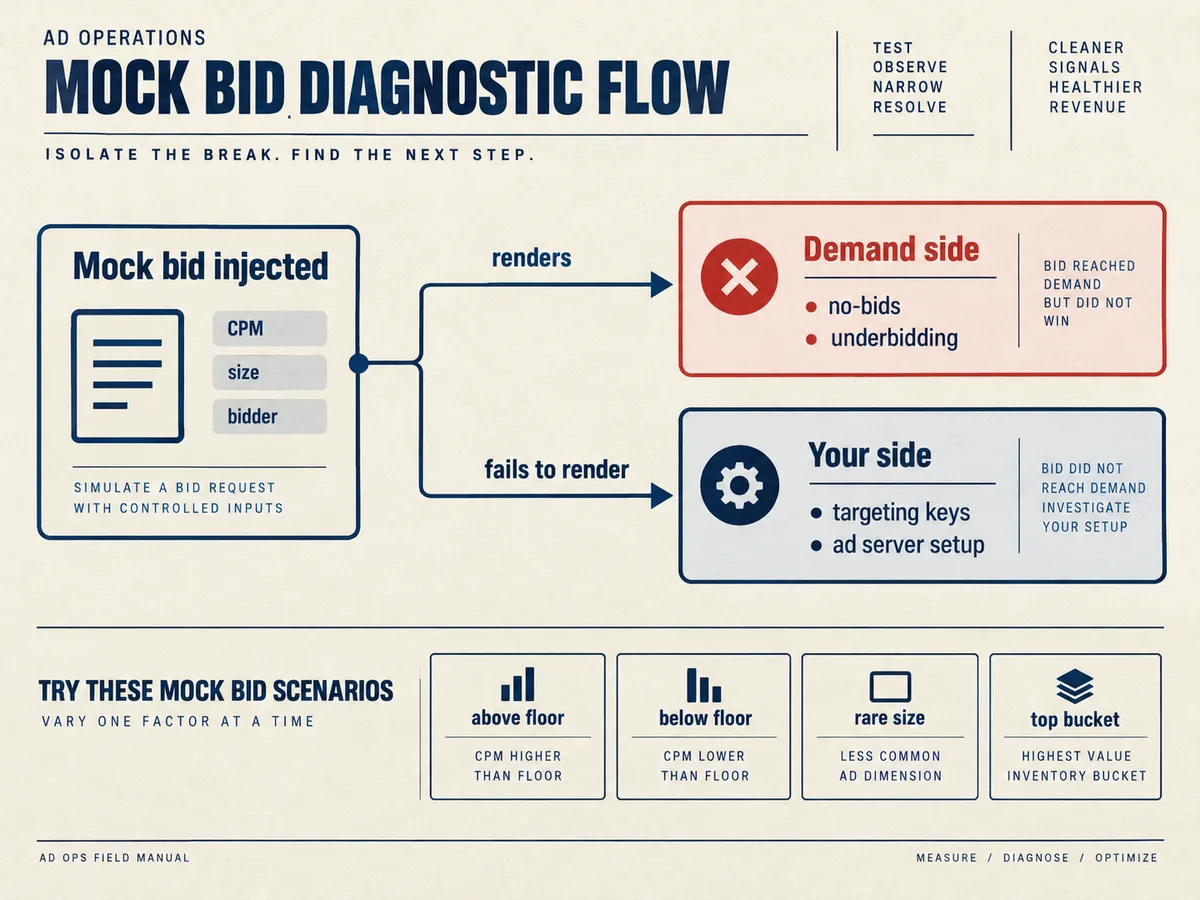
Mock bids also isolate blame. If a mock bid at a realistic CPM renders and delivers correctly, the page, the ad server setup, and the targeting keys all work, and the production problem lives on the demand side: real bidders are underbidding or no-bidding. If the same mock bid fails to render, the problem lives on your side, and no amount of demand partner escalation will fix it. That single experiment cleanly separates the two halves of the pipeline, which is why it belongs in every runbook before you write to anyone about a revenue drop.
Use mock bids to test edge cases as well. Inject a bid just above your floor and one just below it to verify floor behavior. Inject a bid in a less common size to confirm the size mapping in your ad server covers it. Inject a very high bid to check that your top price bucket line items still exist and are not paused after a recent ad server reorganization.
Diagnose no-bids and underbidding systematically
A bidder that never bids leaves a trail, and the trail almost always ends at one of six causes.
First, check consent. Open the console, inspect the TCF consent string, and confirm the CMP loaded before Prebid and the string is valid for your vendor list. Second, check floors. If you use Prebid's floor module, print the floor per ad unit and compare it against the CPMs the same bidder historically returned; a floor set above realistic clearing prices produces clean, silent no-bids. Third, check the ad unit sizes against the bidder's accepted sizes. A 970x250 slot sent to a bidder that only supports standard IAB banner sizes returns nothing, and the adapter log confirms it.
Fourth, check bid adjustment. A bidAdjustment function or a currency conversion misconfiguration can scale every incoming bid below the ad server's minimum, so the bid exists in the log but never clears. Fifth, check geo and inventory restrictions on the demand side. Some demand partners bid only on specific regions or app-ads.txt verified app inventory, and a recent traffic shift can move your audience outside their targeting. Sixth, check the adapter itself: the bidder params in pbjs.adUnits must match the account and placement the demand partner issued, and an expired or migrated account ID produces no-bids with no error.
Underbidding follows the same logic with different thresholds. Compare the raw bid CPM in the debug log against the price bucket Prebid assigns. If a 1.47 bid lands in a 1.20 bucket because of coarse price granularity, your ad server cannot distinguish it from a 1.21 bid, and you lose the difference on every impression. Switching to dense or custom granularity is a config change, not a code change, and it belongs on the checklist whenever CPMs look compressed.
Measure auction latency with the Performance API
Slow auctions cost money twice: the user abandons the page, and bids that arrive late never compete.
Prebid emits timing information, but for a full picture, measuring with the Performance API gives you standard navigation and resource timing metrics plus custom measures you can place on the performance timeline, so you can record the exact moment Prebid sent the request, the moment each bidder responded, and the moment the ad server call completed. A custom measure from auction start to auction end, sampled across a few hundred page views, tells you the real distribution of auction times, not just the average.
Read the distribution against your timeout. If the timeout sits at 1000 ms and the 75th percentile auction completes at 1400 ms, a quarter of your auctions close before your slower bidders respond. Raising the timeout captures more bids but delays rendering, so treat it as a trade-off you measure rather than a knob you guess at. Look at per-bidder response times in the debug log: one consistently slow adapter drags the entire auction, and removing it or moving it to Prebid Server as a server-side connection often improves net revenue even though its bids were fine.
Also measure the gap between auction end and creative render. A fast auction followed by a slow render points at the creative itself, a heavy VAST tag on a video unit, or a third-party wrapper in the ad server, not at the auction layer. Keeping these measures on the performance timeline lets you diff them before and after any config change, which turns optimization from opinion into evidence.
Check the supply chain when bids are fine but delivery is not
Some failures originate outside the page entirely, in the files and objects that authorize your inventory.
Verify ads.txt on the site root and app-ads.txt for app inventory. A missing or malformed line for a demand partner causes that partner to reject your inventory or bid it down, and the effect appears days after someone edits the file. Check the sellers.json file of each SSP in your chain and confirm your account appears as an authorized, direct or reseller entry. If you participate in Google MCM through a managing partner, confirm the MCM relationship is active and the delegation covers the inventory in question, because a lapsed delegation produces GAM delivery failures that look exactly like a Prebid bug.
Inspect the SupplyChain object in the bid request if your setup includes one. An incomplete or incorrect supply chain causes downstream buyers to discount or reject the impression even though every technical step on your side succeeded. Finally, walk the ad server side: confirm the header bidding line items are active, ordered below direct campaigns, and keyed to the exact price buckets your current granularity produces. A recent price granularity change without matching line item updates is a classic silent revenue killer, and the GAM delivery report will show the missing buckets immediately.
Turn the runbook into a team process
Individual debugging skill does not scale; a documented process does.
Write the runbook down, in order: reproduce the symptom, enable debug mode, read the auction log, classify the failure bucket, mock a bid to isolate the layer, measure latency, then check the supply chain files. Attach the exact console commands to each step so a new ad ops team member can execute the whole sequence on day one. Store the output of each debugging session, the debug log, the config dump, the performance measures, alongside the ticket, because the same failure often recurs and the previous evidence halves the second diagnosis.
Standardize your evidence bundle before escalating to any demand partner: Prebid.js version, page URL with the symptom, a debug log capture, the affected ad unit codes, and the timeline of when the metric moved. Our help center documents the exact artifacts we need to investigate an auction issue on our side, and a ticket that arrives with the full bundle typically resolves in a single exchange instead of a week of back-and-forth.
When to escalate and what to send
Some failures sit outside your control: a demand partner's endpoint degrades, an adapter breaks after a Prebid.js upgrade, or a direct deal stops bidding without a config change on your side.
Escalate when you have completed the runbook and the evidence points at the demand layer. Contact WireAds support with the ad units affected, the timeframe, the debug log, and your Prebid.js version, and we will trace the bid stream through our SSP, from the adapter request to the OpenRTB bid response, and identify whether the failure sits in the adapter, in our auction, or in a demand partner upstream. Because we combine Prebid, Google MCM, Google AdX demand and direct deals in one stack, we can compare demand sources on the same impression and tell you quickly whether the problem is isolated or systemic.
Debugging header bidding rewards patience and sequence. Reproduce, inspect, mock, measure, verify, escalate. A publisher who follows that order finds most auction failures within an hour, and more importantly, finds the actual failure instead of the most visible one.